
🎥 Video Settings
Atobi lets you enhance videos in articles by adding Subtitles 💬 and AI-generated dubbing 🗣️. These features help make video content more accessible, easier to understand across languages, and more engaging for international teams.
Both features are available in Article Studio and are managed directly from the video settings.
En este artículo:
⚙️ Where to find video settings
🗣️ AI Dubbing
⚙️ Where to find video settings
When you add a video to an article in Article Studio, the video editor includes three tabs:
- Upload – upload or replace your video
- Subtitles – generate or upload subtitles
- AI Dubbing – generate spoken audio in other languages
The Subtitles and AI Dubbing tabs are locked until a video has been uploaded and saved.
💬 Subtitles
Subtitles can be generated automatically using AI or uploaded manually as a file.
Generate subtitles automatically
- Upload a video and save the article.
- Wait for the video to be processed.
- Click on the video and go to the Subtitles tab.
- Click Generate.

The system will analyze the video and generate subtitles for the main article language. This can take a few minutes, depending on video length.
Once subtitles exist for the main language:
- Subtitles are automatically generated for all other language variants in the article.
- You can add languages either before or after generating subtitles — the order does not matter.
This means you only need to generate subtitles once, as long as all languages use the same video file.
Upload your own subtitle file
Instead of generating subtitles, you can upload your own subtitle file in the Subtitles tab. This is useful if you already have professionally written subtitles or need precise timing.
👀 How to view subtitles
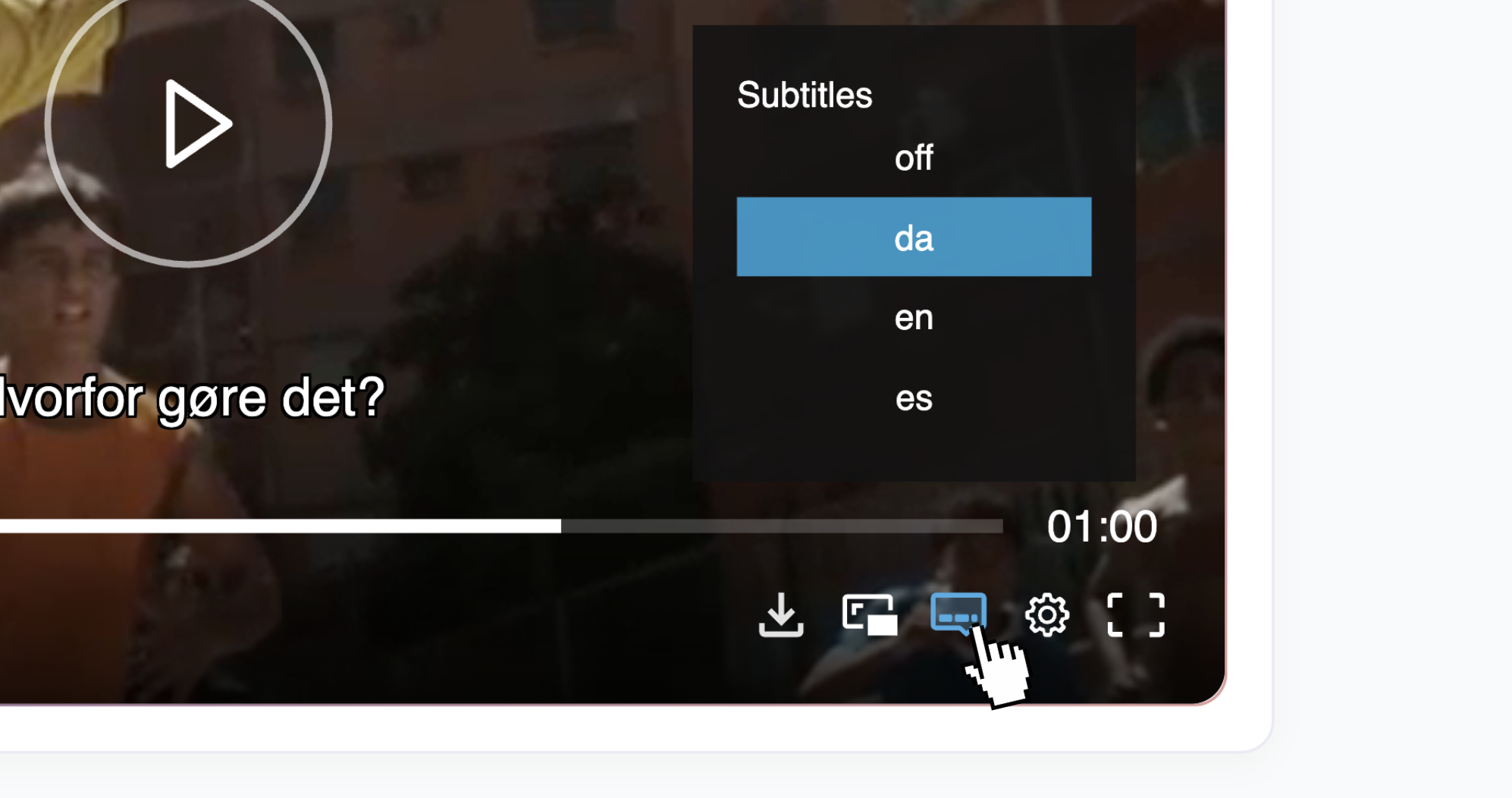
When viewing a video, members can enable subtitles directly in the video player.
- Click the subtitles icon
- Select the language they want to display
The video will then play with subtitles in the selected language.
🗣️ AI Dubbing
AI Dubbing allows you to generate spoken audio in other languages using AI voice technology. This is useful for multilingual teams who prefer listening over reading subtitles.
Generate AI dubbing
- Upload a video to your article and save it.
- Add the languages you want to support to the article.
- Click on the video and go to the AI Dubbing tab.
- You’ll see a list of all article languages.
- Click Translate next to the languages you want to generate dubbing for.

The system will start processing the dubbing for that language.
Processing time depends on the length of the video and may take several minutes.
You don’t need to stay in the article while this is processing. If push notifications are enabled, you’ll be notified when the dubbing is ready.
Availability and setup
AI Dubbing is an add-on feature and requires:
- An active external AI provider subscription
- A valid API key configured in Atobi
🙋 Reach out to your Customer Success Manager for more information on how to enable AI Dubbing.
AI Dubbing usage limits
AI Dubbing is subject to usage limits based on your setup. If a limit is reached:
- Dubbing may fail without a detailed error message.
- This usually means the usage limit has been exceeded.